iSight in 2025
A few years ago I bought a webcam that was also quite a piece of industrial design at the time of its release on 2003: iSight.

With a Firewire 400 interface, is a 640x480 CCD camera with a max frame rate of 30 fps.
It was perfectly usable with every Mac with a Firewire connector ever since. Or so I thought, until I tried to use it with macOS versions newer than Catalina. Apple removed the support for that, and it’s clear that Opencore Legacy Patcher might not take that back.
Ok, at least I have it working with macOS El Capitán.
But I started wondering … “And what about Linux?”
And yes, I managed to make it work under Linux!
Sound works but video does not
We can just plug the camera and see the stereo input:
root@whisky:~# cat /proc/asound/cards
 0 [iSight         ]: iSight - Apple iSight
                      Apple iSight (GUID 000a27000414c178) at fw1.1, S400
 1 [Intel          ]: HDA-Intel - HDA Intel
                      HDA Intel at 0x8c004000 irq 37
And it showed up in the audio mixer.
However, you try to list V4L devices and you get:
root@whisky:~# v4l2-ctl --list-devices
Cannot open device /dev/video0, exiting.
But video is there
… as long as you can do this and see the video:
manuelmc@whisky:~$ vlc dc1394://It’s coming from the raw dc1394 source. There is no camera driver, only FireWire access.
Checking driver support
Long story short: Support for FireWire video interfaces in the kernel was deprecated and replaced as part of a large rework of the FireWire stack around the 2.6.37 kernel (released in early 2011).
At that point the old FireWire device drivers (like ohci1394, raw1394, video1394) were replaced with the new unified firewire_core/firewire-ohci stack, and the dedicated legacy iSight video/kernel driver (where present) was abandoned.
This change meant that userspace had to handle the camera (via libraries like libdc1394) rather than the kernel exposing it as a native V4L or /dev/video* device driver.
Using another route
After trying to bring back the kernel source tree for 5.8.x and confirming that there is not support for iSight FireWire video (even if you tried to compile it yourself), we started looking in other places.
I managed to get plenty of information thanks to ChatGPT and put it together to compile the following guide.
Apple iSight (FireWire) → V4L2 Bridge on Ubuntu 24.04 (Kernel 6.8) for Zoom/Meet/etc.
This guide explains how to use an Apple iSight FireWire camera on modern Linux (Ubuntu 24.04.3, kernel 6.8) from applications that require a V4L2 webcam such as Zoom, Google Meet, Microsoft Teams, etc.
Your iSight works via libdc1394 (for example, vlc dc1394:// shows live video and
the green LED turns on), but it is not exposed as /dev/video* by the kernel.
That is expected on modern kernels.
To solve this, we create a virtual V4L2 webcam using v4l2loopback and feed it from the iSight video stream.
What you will build
- Input: Apple iSight FireWire (IIDC / libdc1394)
- Bridge: FFmpeg or GStreamer (depending on availability)
- Output: v4l2loopback virtual webcam (
/dev/videoN) - Result: Applications see a normal V4L2 camera (e.g. iSight-Virtual)
0) Baseline checks (important)
Confirm the camera works via FireWire / dc1394
vlc dc1394://
If you see video and the LED turns green, FireWire and libdc1394 are working.
Confirm there is no native V4L2 device
v4l2-ctl --list-devices
The iSight should not appear here. This is normal.
1) Install required packages (Ubuntu 24.04)
sudo apt update
sudo apt install -y \
  v4l2loopback-dkms v4l2loopback-utils \
  v4l-utils \
  libdc1394-25 \
  vlc
Install FFmpeg (optional, see section 3):
sudo apt install -y ffmpeg
Install GStreamer (recommended fallback and often required on 24.04):
sudo apt install -y \
  gstreamer1.0-tools \
  gstreamer1.0-plugins-base \
  gstreamer1.0-plugins-good \
  gstreamer1.0-plugins-bad \
  gstreamer1.0-plugins-ugly
2) Create the virtual V4L2 webcam (v4l2loopback)
Create one virtual device (example: /dev/video10):
sudo modprobe v4l2loopback \
  video_nr=10 \
  card_label="iSight-Virtual" \
  exclusive_caps=1
Verify it exists:
ls -l /dev/video10
v4l2-ctl --list-devices
You should see iSight-Virtual.
Important note about formats
On some systems, v4l2-ctl -d /dev/video10 --list-formats-ext may show only:
Type: Video Capture
…with no formats listed. This is normal with exclusive_caps=1 and/or with how
some apps/drivers query loopback devices. The bridge can still work fine.
Optional: load automatically at boot
echo 'options v4l2loopback video_nr=10 card_label="iSight-Virtual" exclusive_caps=1' | \
  sudo tee /etc/modprobe.d/v4l2loopback-isight.conf
3) OPTION A — Use FFmpeg (ONLY if dc1394 input is supported)
3.1 Check if your FFmpeg supports dc1394
ffmpeg -hide_banner -formats | grep -i 1394
If you see dc1394, you can use FFmpeg.
If you do NOT see dc1394 (common on Ubuntu 24.04), you will get:
Unknown input format: 'dc1394' and you must use OPTION B (GStreamer).
3.2 FFmpeg bridge command
ffmpeg \
  -hide_banner -loglevel warning \
  -f dc1394 -framerate 30 -video_size 640x480 -i dc1394:// \
  -vf "format=yuyv422" \
  -f v4l2 /dev/video10
Leave this running while using Zoom / Meet.
4) OPTION B — Use GStreamer (RECOMMENDED / works on Ubuntu 24.04)
This is the preferred and reliable method on Ubuntu 24.04.
4.1 Confirm dc1394src is available
gst-inspect-1.0 dc1394src
If it prints element details, the plugin is available.
4.2 Start the GStreamer → V4L2 bridge (KNOWN-GOOD PIPELINE)
This pipeline is confirmed to work with v4l2loopback when a strict pixel format
(e.g. format=YUY2) fails to link:
gst-launch-1.0 -v \
  dc1394src ! \
  videoconvert ! \
  video/x-raw,width=640,height=480,framerate=30/1 ! \
  v4l2sink device=/dev/video10
Leave it running while using your conferencing app.
Why we do NOT force format=YUY2 here
You may see an error like:
could not link videoconvert0 to v4l2sink0, neither element can handle
video/x-raw, format=YUY2, …
This happens because v4l2sink (writing to v4l2loopback) may not accept that exact
caps combination on your build. Letting GStreamer negotiate the format is the most
portable solution.
4.3 If the image is unstable, try lower frame rate
gst-launch-1.0 -v \
  dc1394src ! \
  videoconvert ! \
  video/x-raw,width=640,height=480,framerate=15/1 ! \
  v4l2sink device=/dev/video10
5) Use the camera in Zoom / Meet / Teams
- Start one bridge only (FFmpeg or GStreamer).
- Open Zoom / browser / Teams.
- Select camera: iSight-Virtual.
6) Troubleshooting
“Device or resource busy”
Only one program can access the camera stream at a time. Close VLC or any other app using the iSight.
Virtual camera not listed
Check:
v4l2-ctl --list-devices
Reload v4l2loopback if needed:
sudo modprobe -r v4l2loopback
sudo modprobe v4l2loopback video_nr=10 card_label="iSight-Virtual" exclusive_caps=1
7) Why this bridge is required (background)
- Apple iSight FireWire is an IIDC camera, not USB UVC.
- Modern Linux kernels do not expose IIDC cameras as V4L2 nodes by default.
- Audio still works via
snd-isight, but video is typically user-space only. - Therefore, a loopback bridge is the correct modern solution.
Quick checklist
vlc dc1394://shows live video (baseline)/dev/video10exists (v4l2loopback)- GStreamer pipeline runs without errors (recommended)
- Zoom/Meet selects iSight-Virtual
Conclusion
On Ubuntu 24.04, GStreamer + v4l2loopback is the most reliable way to use an Apple iSight FireWire camera with modern applications.
FFmpeg can be used only if it was built with dc1394 input support.
Additional script
Keep in mind that you must have the pipeline running before any application tries to use it.
You might want to have a script at hand for turning the camera on when you need it.
cat > ~/isight-autostart.sh <<'EOF'
#!/usr/bin/env bash
set -euo pipefail

DEV=/dev/video10
LABEL="iSight-Virtual"

# Ensure v4l2loopback exists
if [ ! -e "$DEV" ]; then
  sudo modprobe v4l2loopback video_nr=10 card_label="$LABEL" exclusive_caps=1
fi

# Start gstreamer bridge if not running
if ! pgrep -f "gst-launch-1.0.*v4l2sink device=$DEV" >/dev/null 2>&1; then
  nohup gst-launch-1.0 -v \
    dc1394src ! videoconvert ! video/x-raw,width=640,height=480,framerate=30/1 ! \
    v4l2sink device="$DEV" \
    >/tmp/isight-bridge.log 2>&1 &
  sleep 1
fi

# Launch whatever you want
exec "$@"
EOF

chmod +x ~/isight-autostart.sh
Proof of it
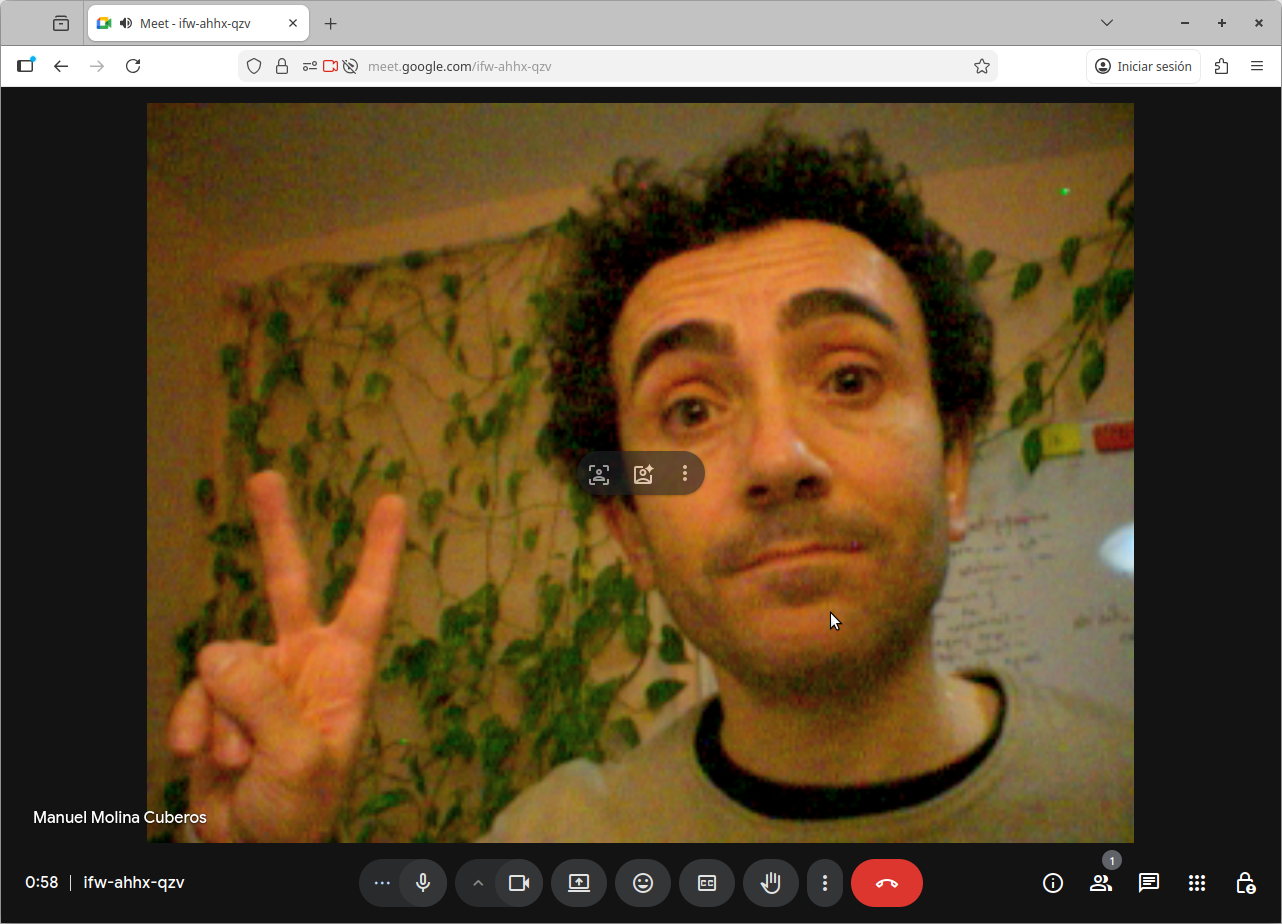
Here you have it!